EFB fuel and payload
Select the flight
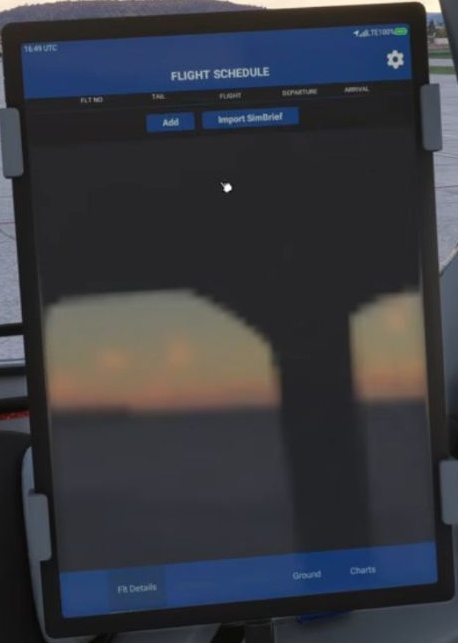
In the EFB Flight Management area, select a flight or import the latest SimBrief plan using the configured authorisation.
Review departure data
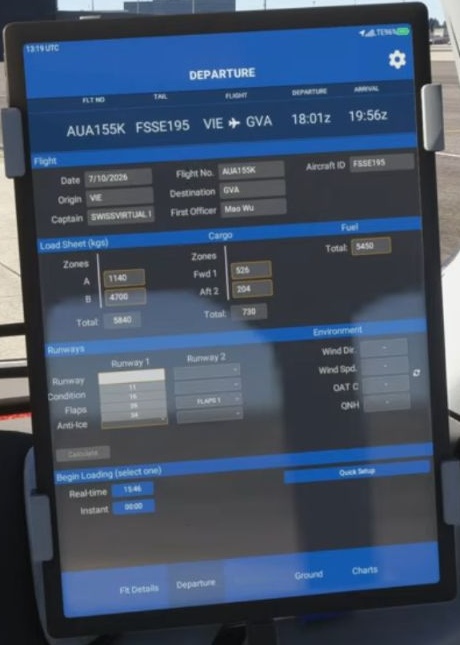
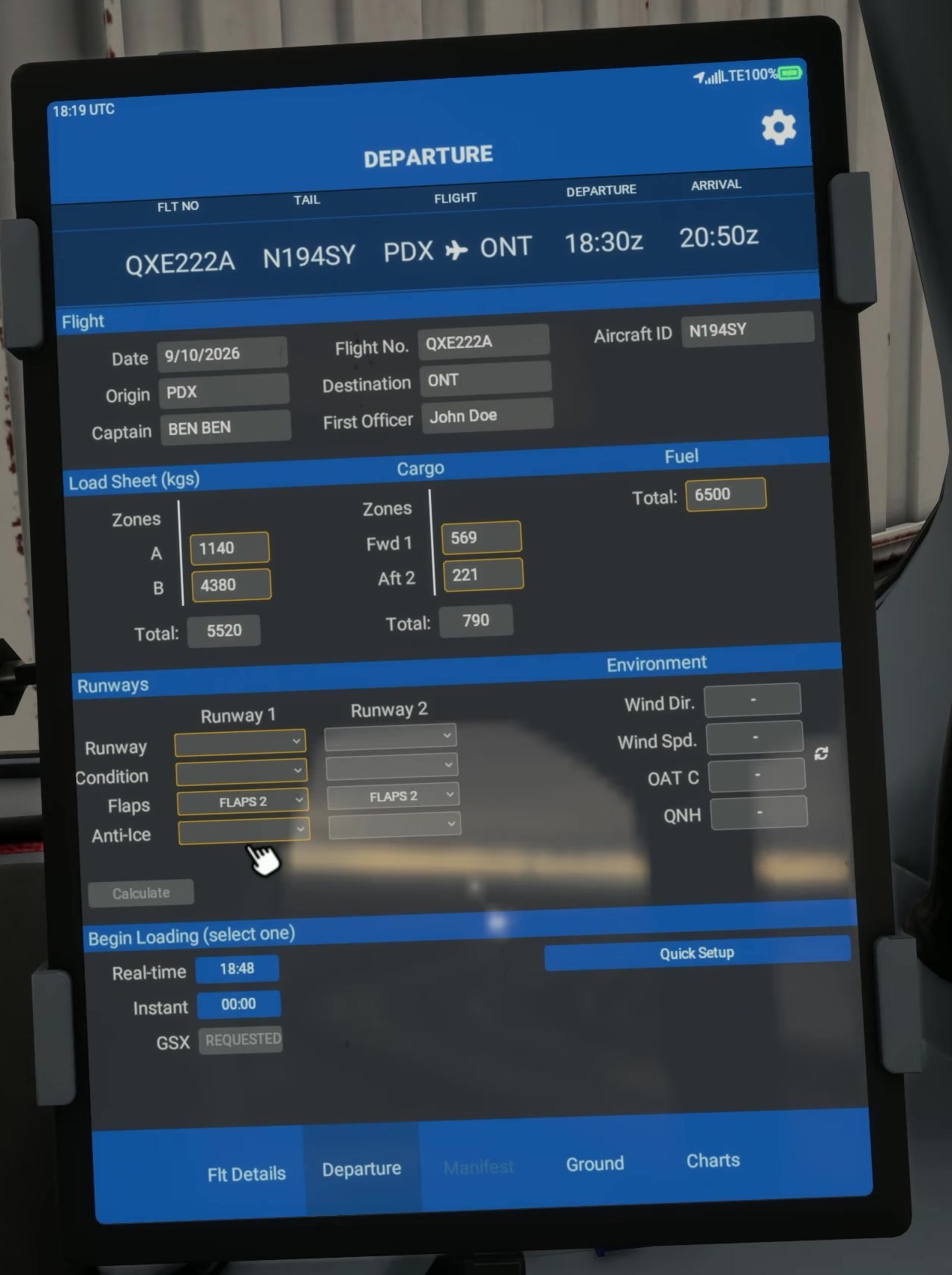
On Departure, compare route, aircraft, runway, fuel, payload and environmental information with your plan.
Generate the load
Run the EFB calculation after checking the entries. Review the result for the correct aircraft and units.
Apply the load
Choose a loading method or Quick Setup in the EFB and apply fuel and payload there. FSS says not to set them separately through the MSFS weight menu or GSX payload because those methods conflict with its custom centre-of-gravity model. The EFB also offers a GSX loading option.
Final loadsheet
Compare ZFW, fuel, takeoff weight and MACTOW with the plan. FSS says ACCEPT closes the loadsheet after the weights have already been applied.
Open Manifest
Find the calculated trim and takeoff data. Keep this page available for the MCDU setup and verify the actual trim indication later.
If you choose GSX under Begin Loading in the EFB, FSS says the EFB applies the weights first and then starts GSX boarding. Do not set the payload separately in GSX.
For an EFB SimBrief import, authorise SimBrief under Settings → General. FSS says the import uses that authorisation even if a username is stored separately. On the final loadsheet or manifest, ENTER INTO MCDU is a helper for placing values in the scratchpad; check and transfer each value to the intended field. [14]