Mark a position along the route
FSS Service Update 1 says FIX INFO is available in version 1.1.0. The NAV page says it is not implemented, and the roadmap still lists it as in progress. If the page is available in your installed build, it can show where the active route crosses a radial or distance from a reference waypoint. The marks are navigation aids; they do not change the route.
Open the page
If the prompt is active, select NAV, then FIX INFO. Its presence in NAV INDEX does not confirm that the feature works in your build.

Choose the reference
Enter the reference waypoint on the FIX INFO page. Check the identifier and position against the chart or the information you intend to use.
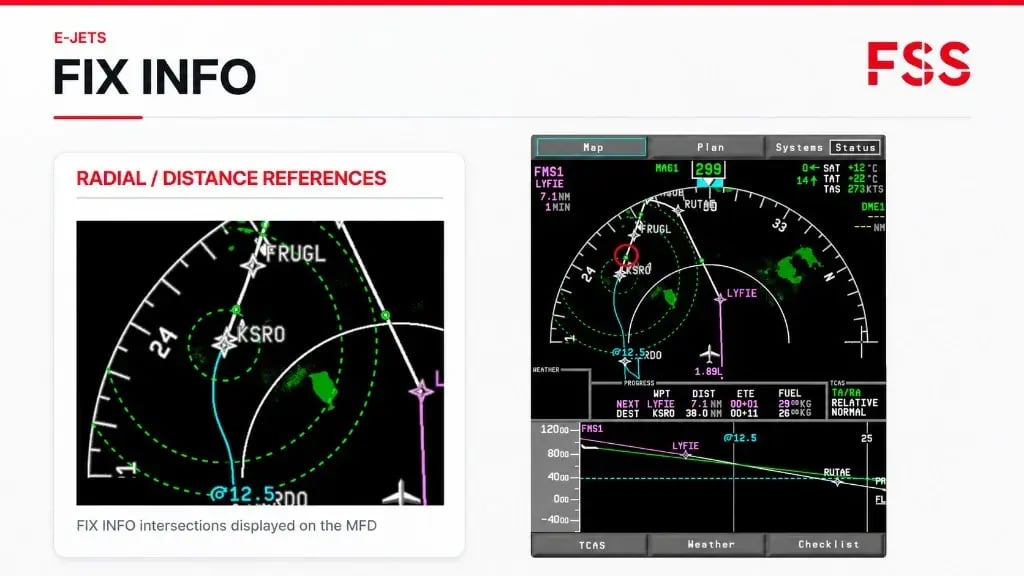
FSS 1.1.0 example: the MFD shows radial and distance rings around the selected reference waypoint. It illustrates the result of choosing a reference, not the MCDU entry field. Full official illustration, unaltered. FSS Service Update 1 [2].
Choose a radial or distance
To define a radial intersection, enter the radial in the format RADIAL/. To define a distance intersection, use /DIST. Enter the value that applies to your flight.
FSS 1.1.0 example: the MFD shows radial and distance intersections around the reference waypoint. This is the complete official illustration as published; it shows the result, not the MCDU entries. FSS Service Update 1 [2].
Check the map
Look at the MFD and compare the green intersection markers with the active route and reference waypoint. Make sure the result is the position you intended.
FSS 1.1.0 example: the MFD shows FIX INFO intersections on the map. It documents the display result, not the MCDU entries. Full official illustration, unaltered. FSS Service Update 1 [2].
Insert the intersection
If you need the intersection as a route waypoint, copy it into the scratchpad and insert it into ACT RTE. Check the proposed legs and map before accepting a route change.
FSS 1.1.0 MFD example: the green FIX INFO markers are the intersections to review before inserting one into ACT RTE. The image does not show the scratchpad entry or the modified route. FSS Service Update 1 [2].
Active route
After a route modification, check the active flight plan, map and lateral guidance. A green reference marker alone does not command the aircraft to fly to it.
FSS 1.1.0 MFD example: compare the FIX INFO markers with the route and reference waypoint. This is not a post-edit ACT RTE capture; verify the active flight plan and guidance on your own MCDU and PFD. FSS Service Update 1 [2].
The current FSS NAV page says FIX INFO is not implemented. The Service Update 1 article and 1.1.0 changelog say it was added and show the MFD result. The roadmap still lists FIX INFO as in progress, but says it shows only selected work. It may reflect continuing work or an out-of-date status; FSS does not explain which. For 1.1.0, check the MCDU page and prompts in your build. FSS NAV [84] · FSS roadmap [71] · FSS Service Update 1 [2].