Operator settings for the selected livery
Open Operator settings
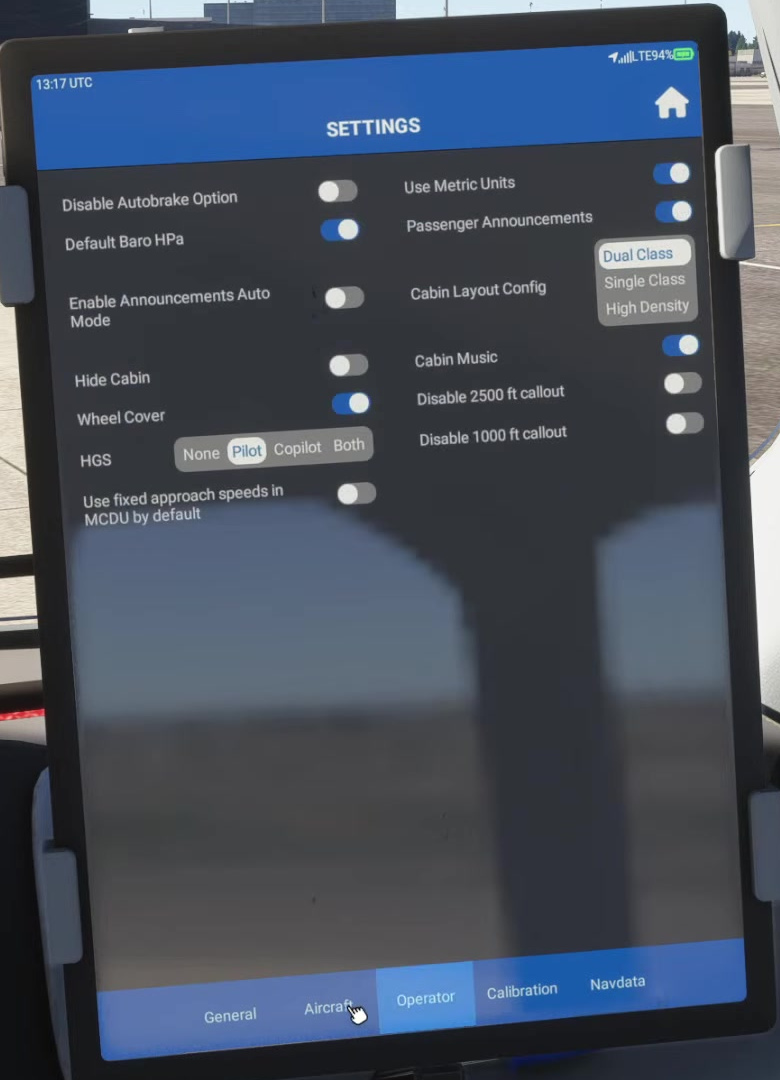
After loading the aircraft and livery you intend to use, open EFB Settings → Operator. The screenshot shows this page after selection; it does not show the livery picker.
Review its saved settings
FSS states that many settings are saved per livery. Check the options shown for this aircraft instead of assuming they match the previous livery.
Check units
Verify weight and barometric units against your flight plan, EFB and PFD.
Check equipment options
FSS documents settings for autobrake availability and, on E190/E195, the HGS configuration. In Service Update 1 (version 1.1.0), RAAS is off by default; enable it here for the selected livery if required. Confirm the actual cockpit matches the chosen setup.
Check approach preferences
Review the fixed-approach-speed preference and actual MCDU approach-speed page.
Record the configuration
If comparing a problem between liveries, note the settings on each before deciding that the livery itself caused the difference.
RAAS provides runway-related audio advisories and visual indications on the MFD during ground operations. It does not replace checking the assigned runway, signs, chart and clearance. FSS added the feature in version 1.1.0. FSS Service Update 1 [2]. [91]