Reviewing an imported flight plan
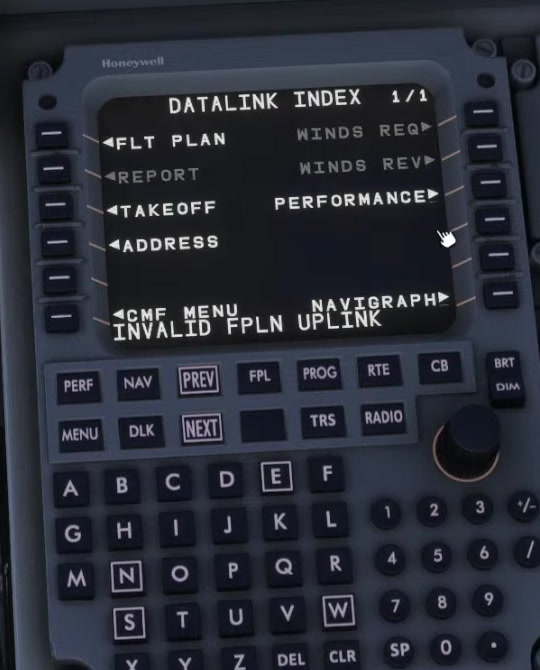
If the scratchpad reports an invalid uplink, check the account address and flight-plan details, then request the plan again. Do not assume a route has loaded until you can inspect its legs.
Set the address
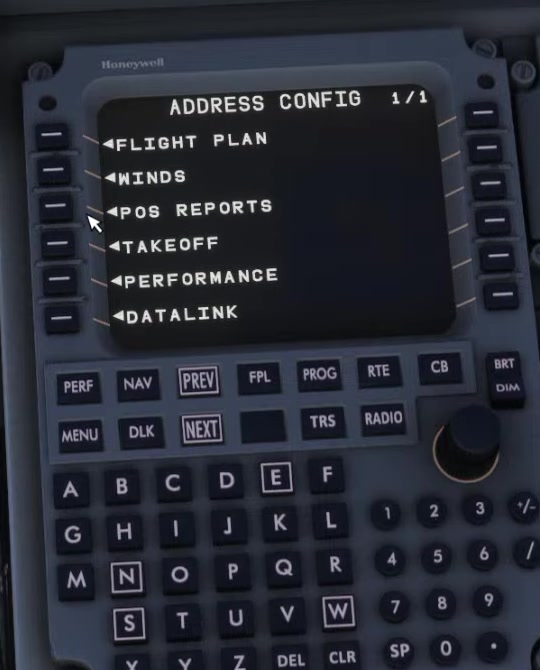
FSS describes NAV → DATALINK → ADDRESS → FLIGHTPLAN for storing the SimBrief username or user ID. With the company address empty or set to MSFS, FSS says SEND uses the simulator flight plan instead.
Match the OFP
Check origin, destination and flight ID against the current operational flight plan.
Request the route
For version 1.1.0, the current RTE and DATALINK pages show SEND; RTE also lists DLK FPL. The older Preflight Setup and SimBrief Import pages call the request DLK PFL and offer CO ROUTE. Use the prompt shown in your installed version.
Review before applying
Confirm that the requested flight is the intended flight and that the route makes sense.
Apply the proposal
The RTE page describes SEND loading the route into MOD. The DATALINK page describes ACCEPT or APPLY ACTIVE after a request. Follow the prompt on the page you used, then inspect the modified route.
Add procedures
FSS says the route import does not include the SID or STAR; its procedure guide also lists the runway as not imported. Select the runway and procedures appropriate to the clearance and charts.
Activate and check
After reviewing the resulting legs and discontinuities, activate the route and verify the active plan.
The FSS DATALINK page labels the lower-right index prompt SIMBRIEF. In the E195 example above, that position reads NAVIGRAPH. Use the ADDRESS → FLIGHT PLAN route described here and check the prompts in your installed build. FSS DATALINK [88].
The SimBrief Import [86] and Preflight Setup [85] pages offer CO ROUTE and label the request prompt DLK PFL. The Procedure Guide [9] and the DATALINK page [88] describe SEND-based import. The RTE page [87] labels the list DLK FPL, provides SEND and says CO ROUTE is not implemented. FSS had also documented the CO ROUTE format in its 0.10.48 release notice. These pages give different prompts and different status for CO ROUTE. In the installed aircraft, follow the option shown and inspect the proposed route before activation.
In a 6–7 November support thread, one user on 1.1.0 could not find DLK FPL after sending a SimBrief plan from the EFB. Replies first asked whether the SimBrief username or user ID had been entered as COMPANY ADDRESS under NAV → DATALINK → ADDRESS → FLIGHTPLAN. Another user then suggested CO ROUTE `EGPFEGLL001`. The original poster later said it seemed to be working but did not say which action fixed it. The thread does not establish a general workaround or identify the cause. Check the company address as well as the prompt shown by your aircraft, then inspect every MOD leg before activating the route. FSS #news, 10 September 2026 [89] · Community-support thread, 6–7 November 2026 [90].
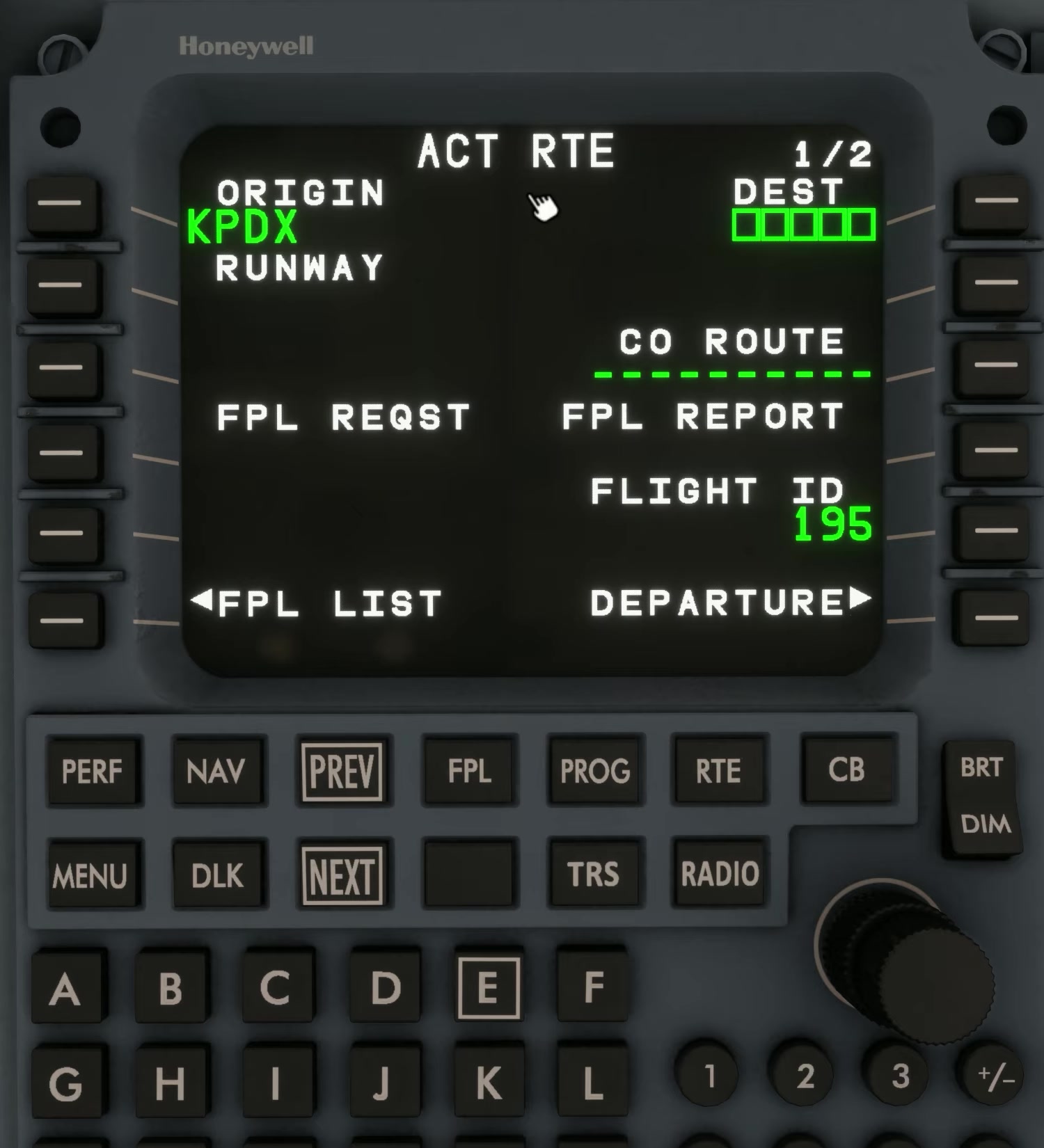
FSS describes SEND from the RTE page and a separate request through DATALINK → FLT PLAN followed by ACCEPT or APPLY ACTIVE. Use the prompt on the page you opened, then confirm the intended route appears in MOD.
Compare FSS RTE [87] and FSS DATALINK [88].
The FSS DATALINK page says some ATS/ACARS request pages are display-only. The version 1.0 release announcement separately says Hoppie CPDLC was added. Service Update 1 then announced PDC, CPDLC and ATIS through BeyondATC and SayIntentions. The current documentation does not explain how Hoppie is configured or how that integration relates to the newer providers. Use only the service and requests actually offered in your installed build, and check for a returned message; a visible prompt alone does not confirm that a request was sent. FSS DATALINK [88] · FSS version 1.0 announcement, 5 October 2026 [78] · FSS Service Update 1 [2].
For the version 1.1.0 integration, choose BeyondATC or SayIntentions in EFB settings before using that service. Use the MCDU for the supported PDC, CPDLC or ATIS request and read the returned message before acting. FSS says version 1.1.0 requests both arrival and departure D-ATIS when an airport has no combined ATIS; check which report applies to the flight. Compare a clearance with the route and flight state; selecting a provider does not itself enter a clearance into the flight plan. [88] [9]