MCDU scratchpad input
Typing a value puts it in the scratchpad. It does not update a field until you press the line-select key beside the intended field.
Open the page
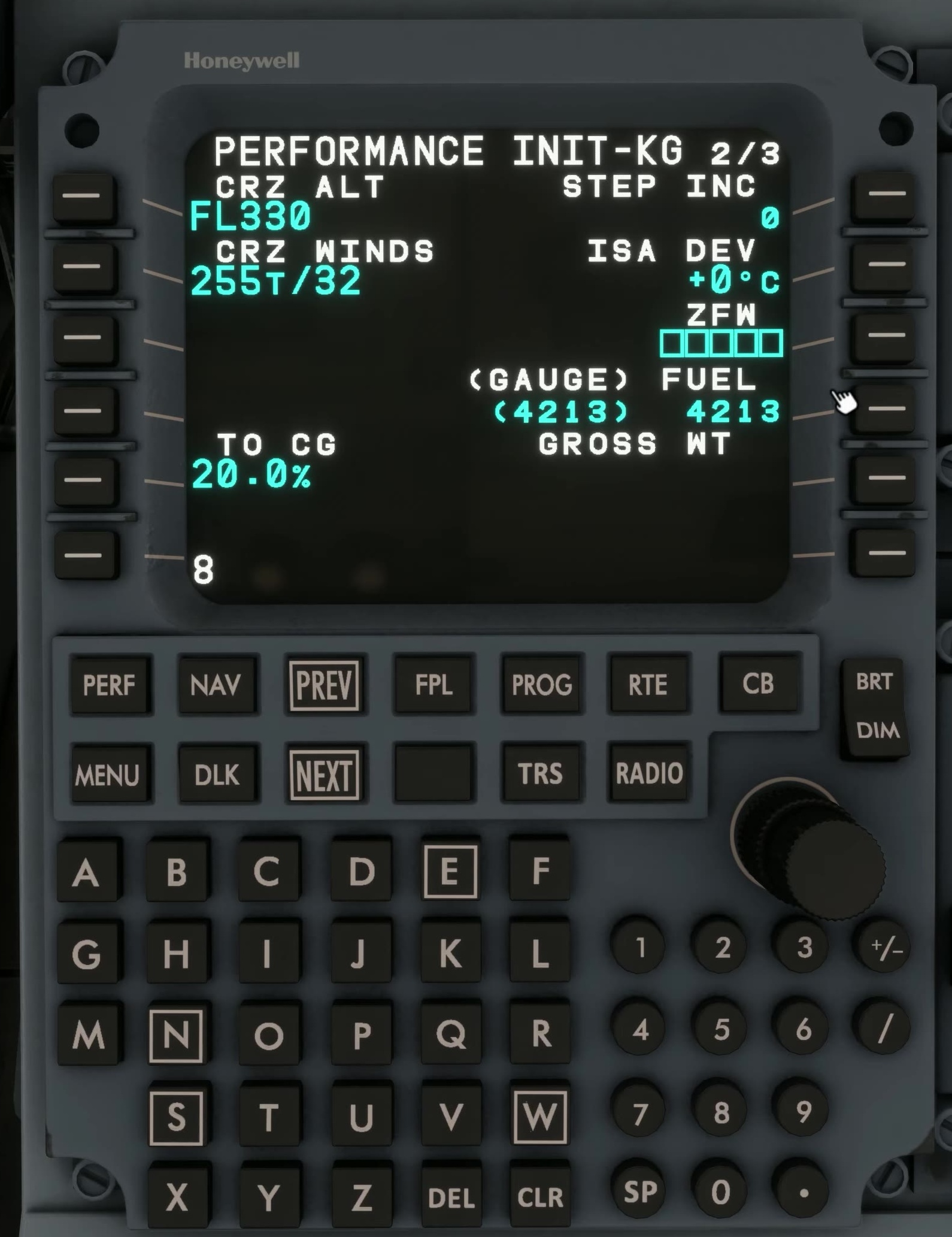
Press the relevant function key and check the page title.
Type the entry
Use the MCDU keypad. To use the computer keyboard, enable MCDU Keyboard Entry under EFB Settings → Aircraft, then click the MCDU. Read the scratchpad before transferring the entry; press Tab to release the keyboard afterwards.
Select the field
Press the line-select key adjacent to the intended item. Make sure you use the correct side of the screen.
Verify the result
The value should now appear in the target field. If an alert appears, read it before clearing or trying another entry.
Clear deliberately
Press CLR to clear an alert first, then remove scratchpad characters one at a time. DEL places *DELETE* in the scratchpad; press the line-select key beside a field to delete that field.
In version 1.1.0, FSS says DEL on a procedure speed or altitude clears the published restriction from that field. Only remove a restriction when appropriate for your clearance; review the modified flight plan before activating it. FSS Service Update 1 [2] · FSS flight plan [20]. [19] [91]