Check route discontinuities
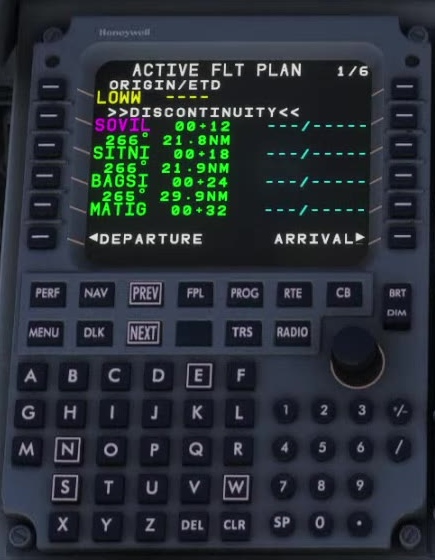
A discontinuity marks a break in the programmed path. Sometimes it represents a missing connection; sometimes it is exactly what a vectored departure or arrival requires.
Locate the gap
On FPL, page through the route and identify the legs immediately before and after the discontinuity.
Compare with the procedure
Use the current chart and clearance. Check whether a vector, manual termination or separate instruction is expected.
Vector or route continuation
Leave a deliberate break in place until an appropriate clearance and path are available. Do not delete every gap as a routine clean-up.
Make an authorized change
If a continuous connection is intended, use the appropriate waypoint insertion or deletion shown on the FSS preflight page. Review the MOD route.
Activate and monitor
After checking geometry and constraints, activate the change. Verify the active leg and FMA; retain a safe selected mode if LNAV is not appropriate.
The documentation describes the available edit, not a clearance to join arbitrary legs. A discontinuity may be part of the procedure.
The FSS F-PLN page says to enter the waypoint in the scratchpad and press the left line-select key beside the waypoint where it should be inserted. In a community-support example, placing ZALEK after ZADON meant pressing the key beside the following waypoint, KGPI. The discussion also reports earlier NOT IN DATABASE messages and confusion during in-flight edits. Those reports do not establish a current general defect. After any edit, check the MOD leg order and discontinuities before activation. FSS F-PLN [20] · Community-support route-entry thread, replies through 9 November 2026 [60].