Aircraft loading
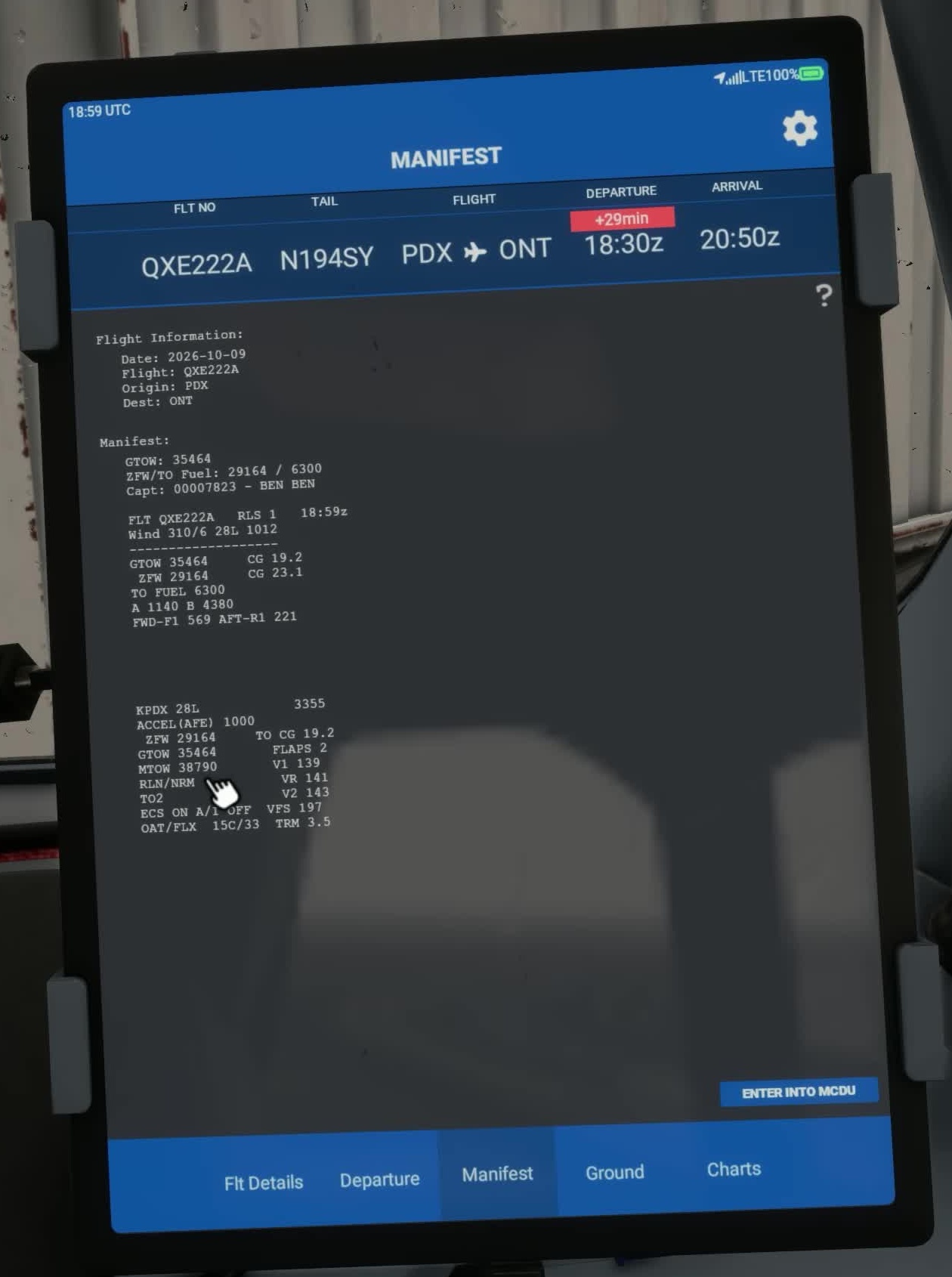
After loading, compare the EFB manifest, aircraft load and PERF INIT entries.
Choose a flight
In Flight Management, select or add a flight. The EFB SimBrief import uses the account authorization described under Settings → General.
Calculate the departure
On Departure, review the route, aircraft, runway, weather, weights and fuel. Select Calculate using the values appropriate to your simulated flight.
Apply the load
Select Begin Loading and choose a suitable method, or use Quick Setup and Apply. FSS says to apply fuel and payload through its EFB because the simulator weight menu and GSX payload can conflict with its custom CG model.
Read the final loadsheet
Compare the resulting ZFW, fuel, takeoff weight and MACTOW with the plan. Accept closes the loadsheet; FSS says the weights have already been applied.
Open Manifest
Read the trim and takeoff data for the actual configuration. The EFB entry helper types values into the MCDU scratchpad. Use the appropriate line-select key, then check the field. In Service Update 1 (version 1.1.0), generating the manifest also makes the performance page available for takeoff and landing distance calculations. [14, 2]